 Diligence for Excel
Online User Manual
Archive File
For Diligence v2.4
This online PDF manual is best navigated by clicking the relevant Contents Index item below which will take you directly to the chapter of interest, or alternatively finding the topic required by pressing Ctrl-F and entering the appropriate text at the bottom of the screen.
The Full Diligence for Excel Manual is available in PDF format HERE
Copyright 2016. DiligenceForExcel.com. All rights reserved.
This manual may not be copied in whole or part without the express prior written permission of the copyright holder.
Archive File
Press the ‘Archive’ button on the main Diligence ribbon. This utility assists with archiving a current file, by breaking any workbook links, overwriting formulas with values, protecting the data and saving a read-only copy of the file to a defined archive folder with a single button push. This archive function is NOT a backup of the source file, but instead creates a snapshot of the current status of the workbook. In most circumstances it cannot be reverse engineered to the original file.
Archiving can be useful for ensuring no volatile functions (such as RAND(), NOW(), TODAY(), OFFSET(), CELL(), INDIRECT(), INFO()) or links will change the workbook contents, thereby proving a workbook’s definitive values at any given point in time.
 |
The standard Archive userform has options to (re)open the original and archive files, and the expected archive file. By default, the standard archive acts under the following guidelines …
Archive Name: The original file name appended with the word ARCHIVE and the date, for example Data.xlsx would be saved as Data ARCHIVE 2016Aug24.xlsx. If more than one archive is saved in the same location on the same day ‘_vx’ is appended where x is a version number, for example the fourth Archive for that file on that data would be Data ARCHIVE 2016Aug24_v4.xlsx
Archive Path: The following locations are attempted, in order. …
1st The Archive Path listed on the extended section of Table of Contents sheet (Users may need to show the extended sections of the ToC via the Table of Contents function). If the named path is not available and/or does not have write permission, the user is alerted and the system saves the file in the same folder as the active file.
2nd If no ToC exists or the Archive Path is not entered, Diligence attempts to create sub-path of the active file’s path, entitled ‘Archive’. E.g. For C:\Lucy\Documents the system would attempt create a path entitled C:\Lucy\Documents\Archive
3rd If the Archive path cannot be created the system attempts to save the Archive file in the same folder as the active file.
By default, the following actions are undertaken when archiving a file …
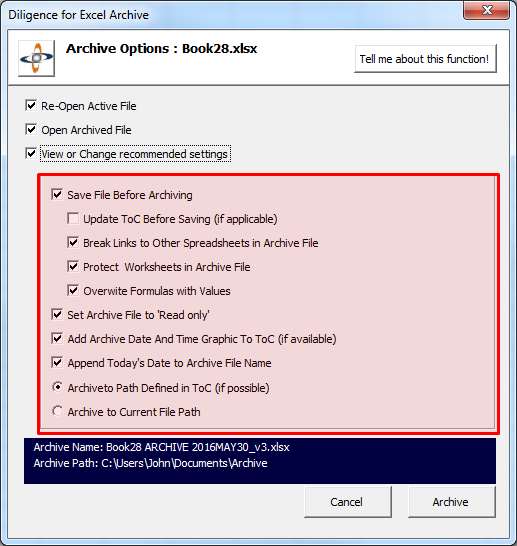
· The file is saved (the user is NOT prompted)
· Links to other files are broken
· Formulas are overwritten with values
· An Archive stamp is placed on the Table of Contents sheet, if available (see below)
· All worksheets are protected with Excel’s standard protection method (no password)
· The file is re-saved as an archive with the date & time included in the file name.
· The archive file is set to read only
· Both the original file and archive file are re-opened and the original file activated.
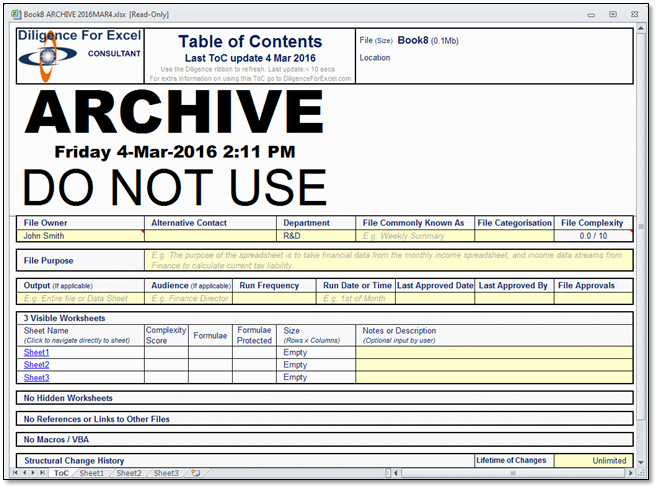
For audit purposes and to prevent changes to current cell data, the archive stamp is entered as a picture, such as in the example below. If there is a Table of Contents sheet, then a space is created at an appropriate row, otherwise the picture is placed over the cells. If the picture needs to be moved or removed, simply unprotect the sheet (Excel Ribbon / Review / Unprotect Sheet) (no password required)
Archive Options
Several of the default settings can be overridden by pressing the ’View or Change recommended settings’ check box from the main Archive userform …
 |
Archiving Files with Event Macros
Due to the nature of archiving, it is necessary to save, close and usually re‑open the file. Workbooks that have event macros linked to any of these events are likely to disrupt the archiving process and may cause errors. If problems are encountered, it is recommended that these files are closed and re‑opened with macros disabled, and then the option to NOT re-open the archive file is checked.